

A student recently explained to me that they had to create a drill for set of briefs they wanted to learn. In my view, the best way to do this would be creating a repetitive dictation of the brief(s) a person wants to drill, marking that for dictation, and then practicing at some kind of speed. I know minimal computer coding, and have made tools to try to help students and educators cut down on busywork in the past, but because my coding knowledge is so limited, I’ve never quite mastered it enough to make it easy for people, and consequently, the tools I’ve designed go underused.
I plan to continue to do research and make a real effort to make these tools accessible, but in the meantime, I have a workaround that anyone can do from their computer in five easy steps.
Step 1:
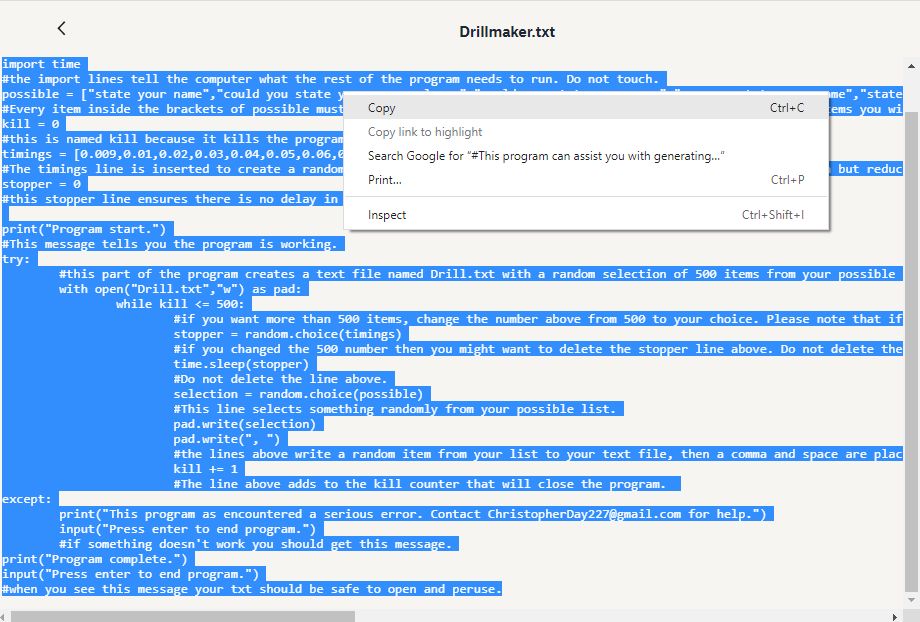
Get the code. Go to my Dropbox, highlight the code text, right click it, and copy it. You can also use CTRL+C when things are highlighted to copy them. Don’t waste your time reading this image, it’s just demonstrative.
Step 2:
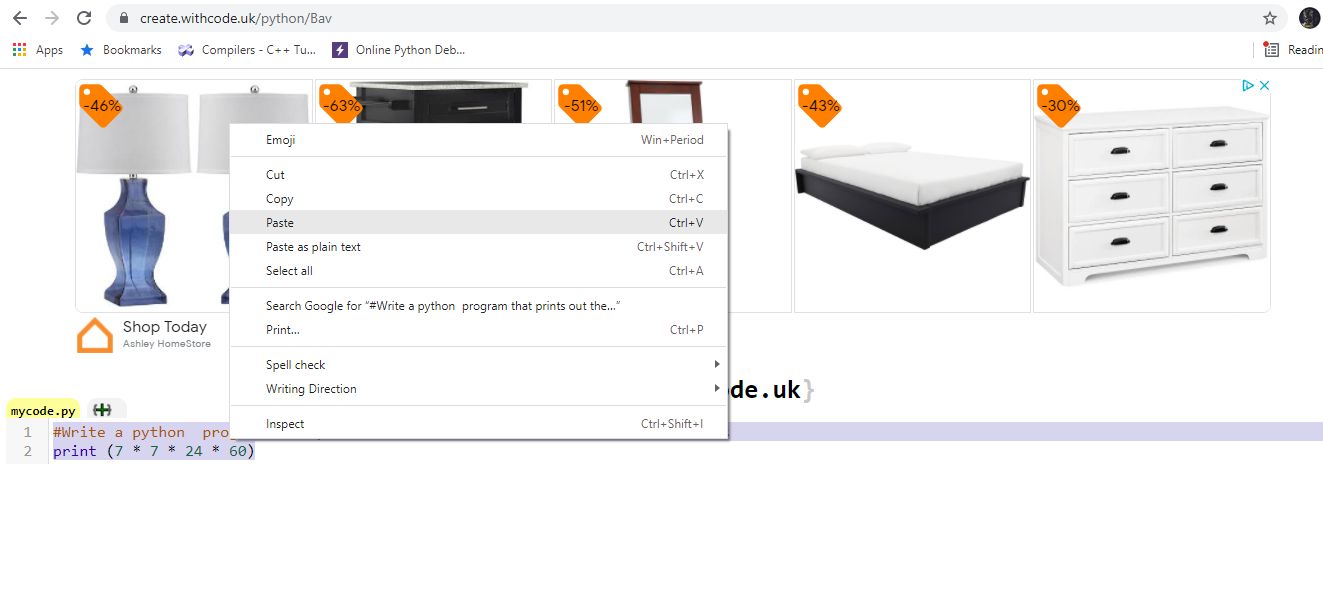
Paste the code into this person’s website. Note that when you open the site, they have some code there already. Just paste right over that or even delete it.
Step 3:
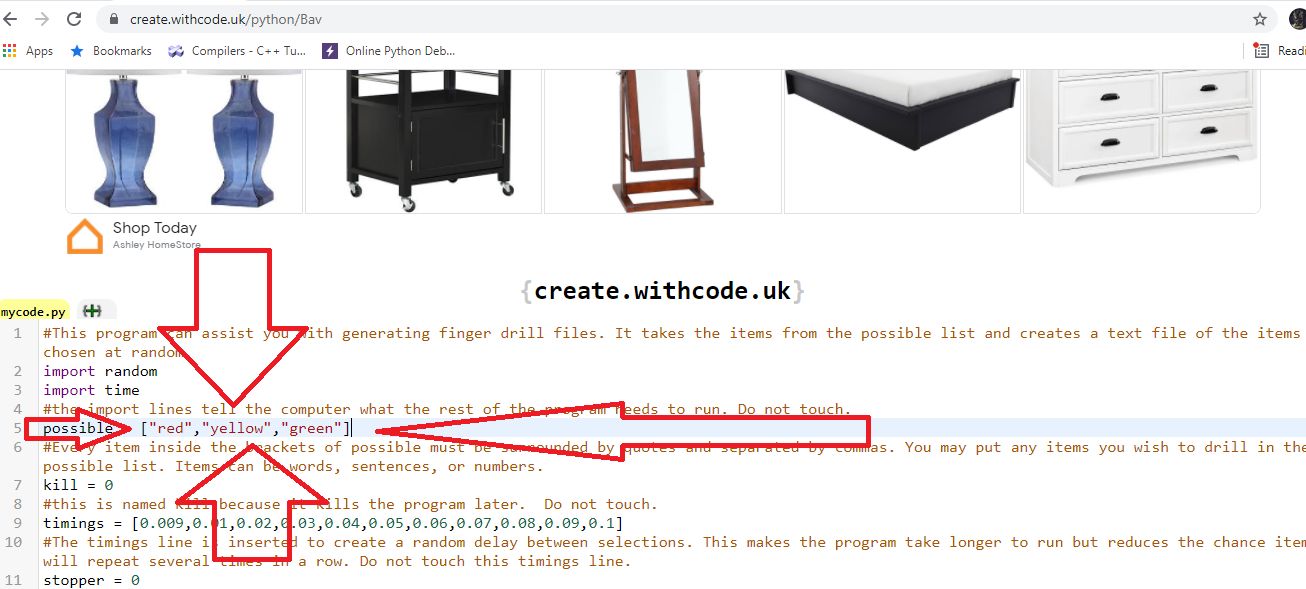
Once you have pasted the code in, go to line 5. There should be a line that says “possible.” Inside those brackets, you put whatever terms you want to show up in your drill. In order to make this work, every phrase or word you want must be surrounded by quotation marks and separated by commas. In the example below, I show what it would look like if you wanted to drill red, yellow, and green.
Step 4:
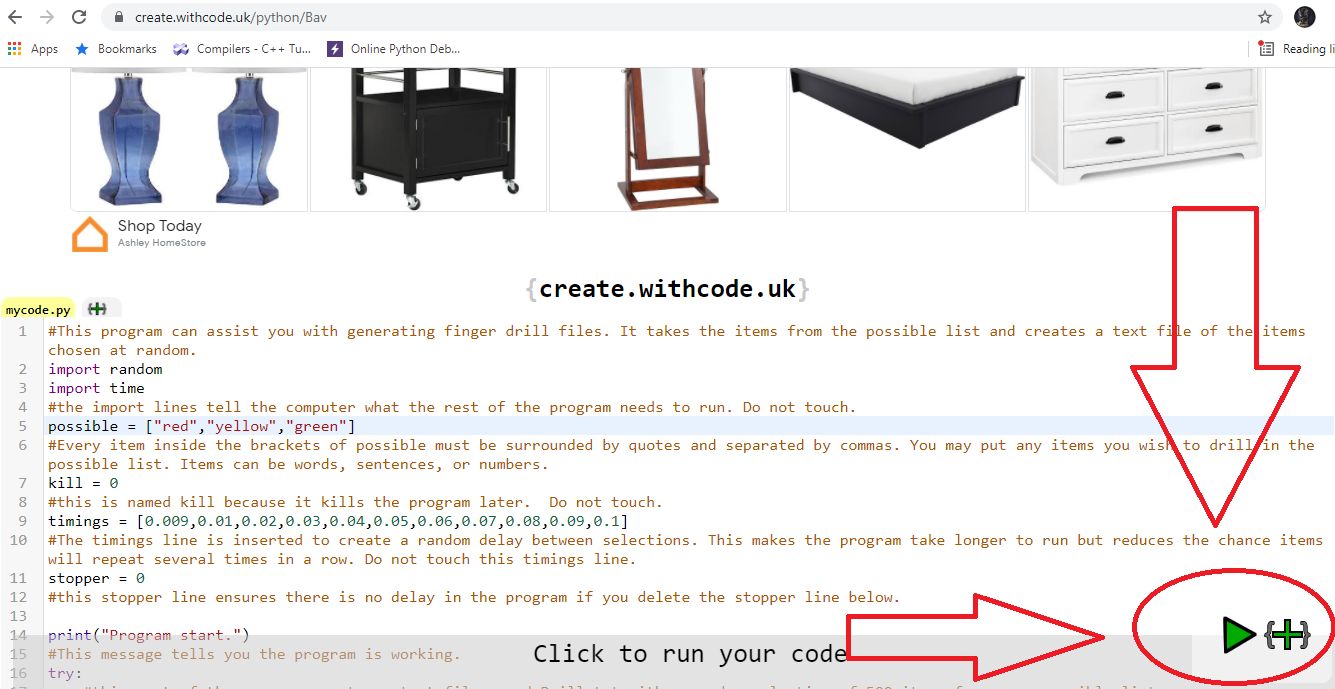
Once you have set up the words you want to appear in the drill, click the green “run code” button on the bottom right. A black box will pop up. If it says program start, the program is working. If it talks about an error, something went wrong. If it says program complete, it’s all done.
Step 5:
After approximately one minute, the program will finish. You will have a file called Drill.txt on the left side of the screen. You can copy your drill into Todd Olivas’s slasher to help you mark it for dictation. If you need help dictating, see what I’ve written about that here.
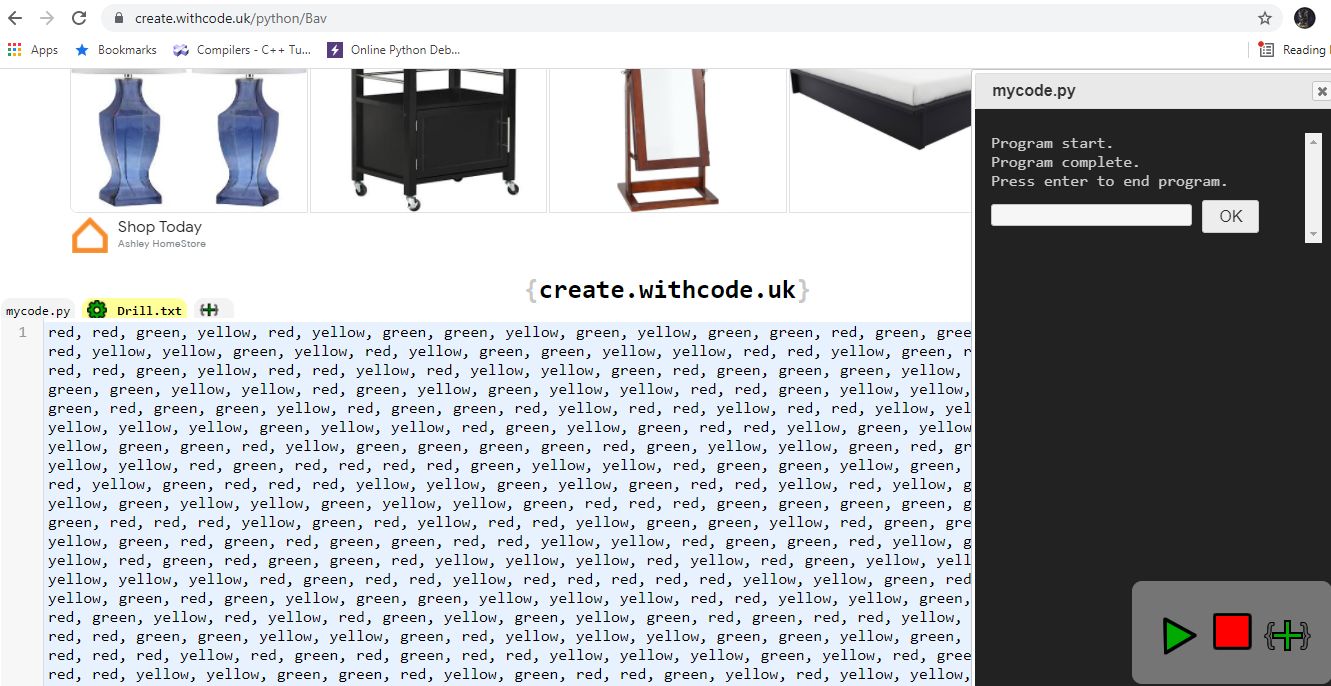
I know that this is not ideal, but it is a fast and easy way to get long lists of words without having to painstakingly write and copy them multiple times. I really hope it helps. Special thanks to the student that gave me the idea.
Addendum:
Shortly after releasing this post I changed the code and Dropbox link to a much faster version of the program. It avoids repeating the same word twice and works in one second instead of fifty. The only drawback is that if you only put one item in your word list, the program will run forever without giving you an error message. Please put at least two items in the list.
Additionally, after sharing what I was working on with the Open Steno community, Joshua Grams created an HTML file that is much easier to use. Just download it and double click to open it in your browser. It does not randomize the words, but it does repeat whatever you type into it as many times as you ask it to.